XE Node for your computer
Lend what you choose. See what it earns.
XE Node will be the app that runs an XE node on your own computer. This first build is its design, to click through: the menu-bar view and the full window, with nothing running behind them.
Design preview. Sample data only. It does not run a node or earn anything, and no resources leave your computer.
01What it is
The app, before the node
- What XE Node will be
- An app that runs an XE node on your computer. You set how much processor, memory, disk and bandwidth it may lend. Jobs run inside those limits, and each second of work is paid in XE to your wallet. It sits in the menu bar, with one switch.
- What this build is
- That design, as a real Mac app, with sample data. The switches change what is shown and nothing else. It is here so the design can be judged where it will live: in a menu bar, next to other windows.
02Download
Download version 0.1.0 for macOS
Version 0.1.0, built 2026-10-13 from source commit 2d87435. macOS 14 or newer, Apple silicon and Intel.
Download the disk image.
Download for macOSXE-Node-0.1.0-universal.dmg, 5.3 MB
Check it. In Terminal, in the folder you saved it to. The command must print the line below it. If it does not, delete the file.
shasum -a 256 XE-Node-0.1.0-universal.dmg3ba502723fa6b2858dc81c202b3077495d378d0364ef44d45b009ea609092835Open the disk image and drag XE Node onto Applications. Then eject the disk image.
Open XE Node from Applications. macOS asks once whether to open an app downloaded from the internet, and says Apple checked it for malicious software. Its window opens, and an XE icon appears in the menu bar.
Not on a Mac, or would rather install nothing? The same interface runs in a browser tab, on a drawn desktop with a menu bar. Windows comes later.
- It is a design preview. Every figure in it is sample data, and a "SAMPLE" label stays on screen. It runs no node and earns nothing.
- macOS today; Windows later. There is no Windows or Linux build yet. The browser simulation is for everyone else.
- No automatic updates. For a newer version, come back here.
- The menu-bar icon can be hidden. On a MacBook with a notch and a full menu bar, macOS leaves icons out. The Dock icon opens the window.
03What you can see
Two views of one app
These are the app's own screens. Every number in them is sample data.
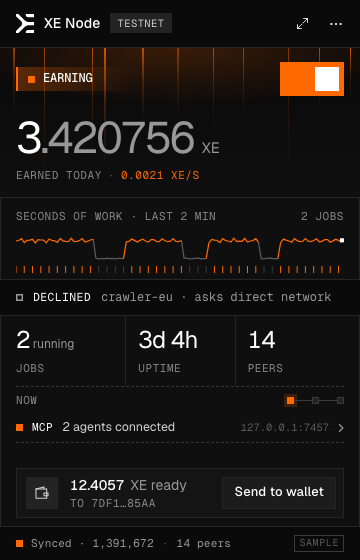
The menu-bar view
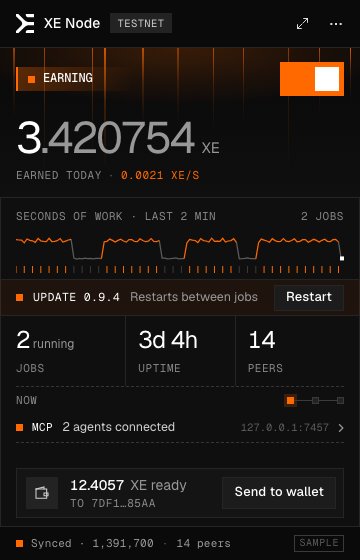
Click the XE icon in the menu bar. It is the glance and the switch: the node's state, what it made today, the last two minutes of work, and "Send to wallet".
A problem takes the place of the work strip, with the one action that fixes it. The ⤢ button grows the view into the full window.
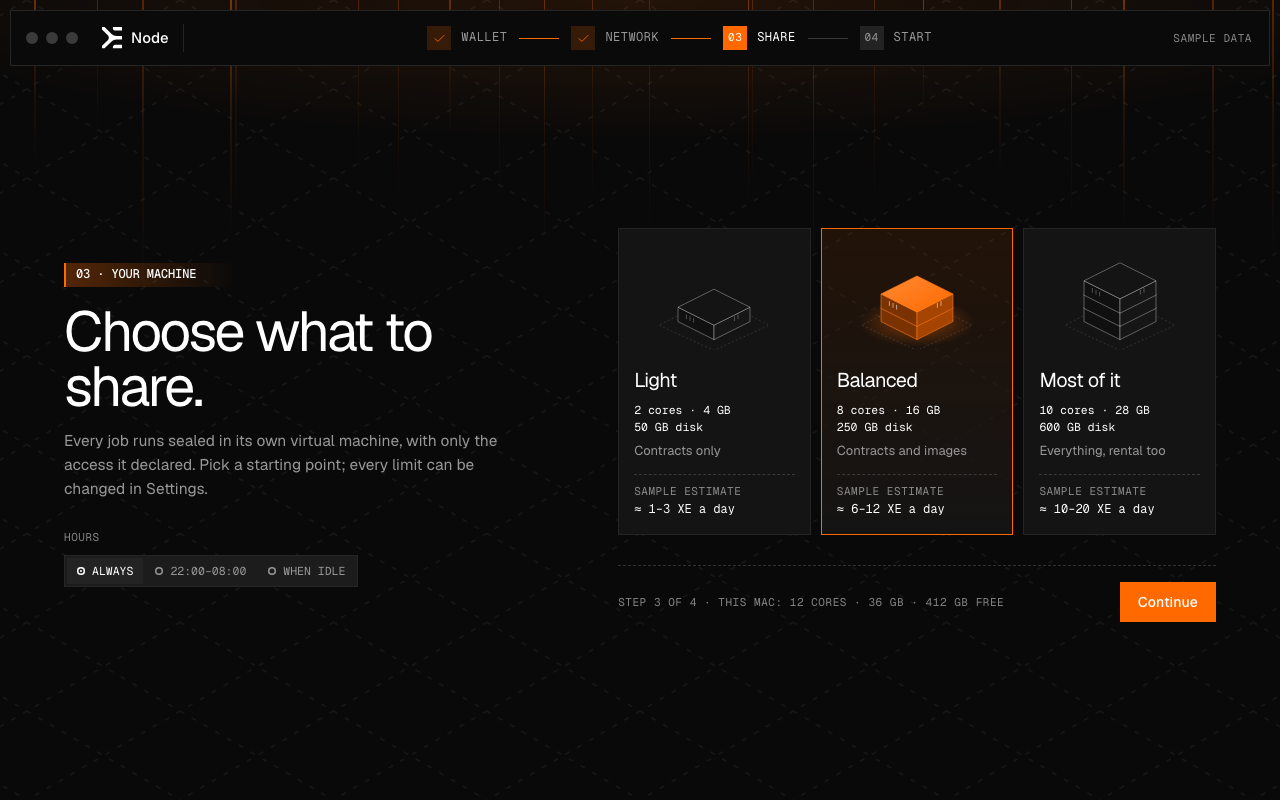
The full window
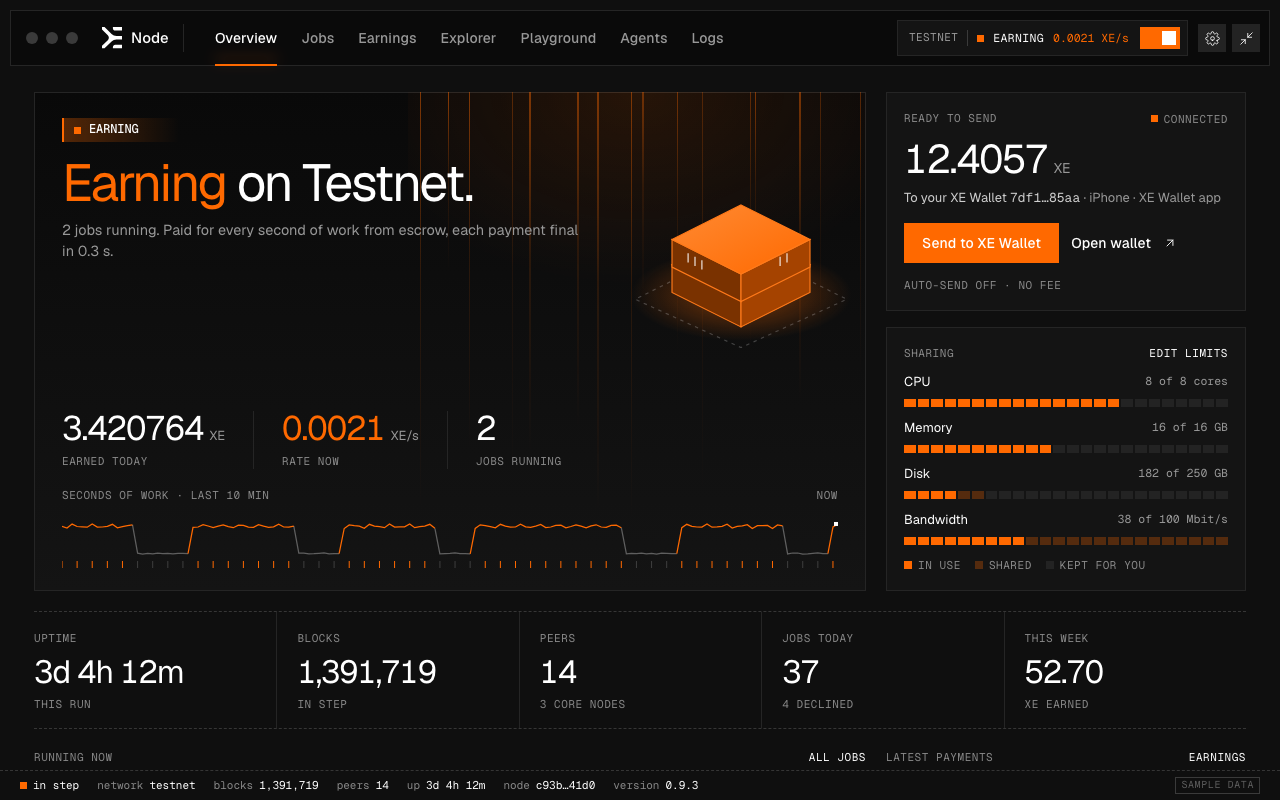
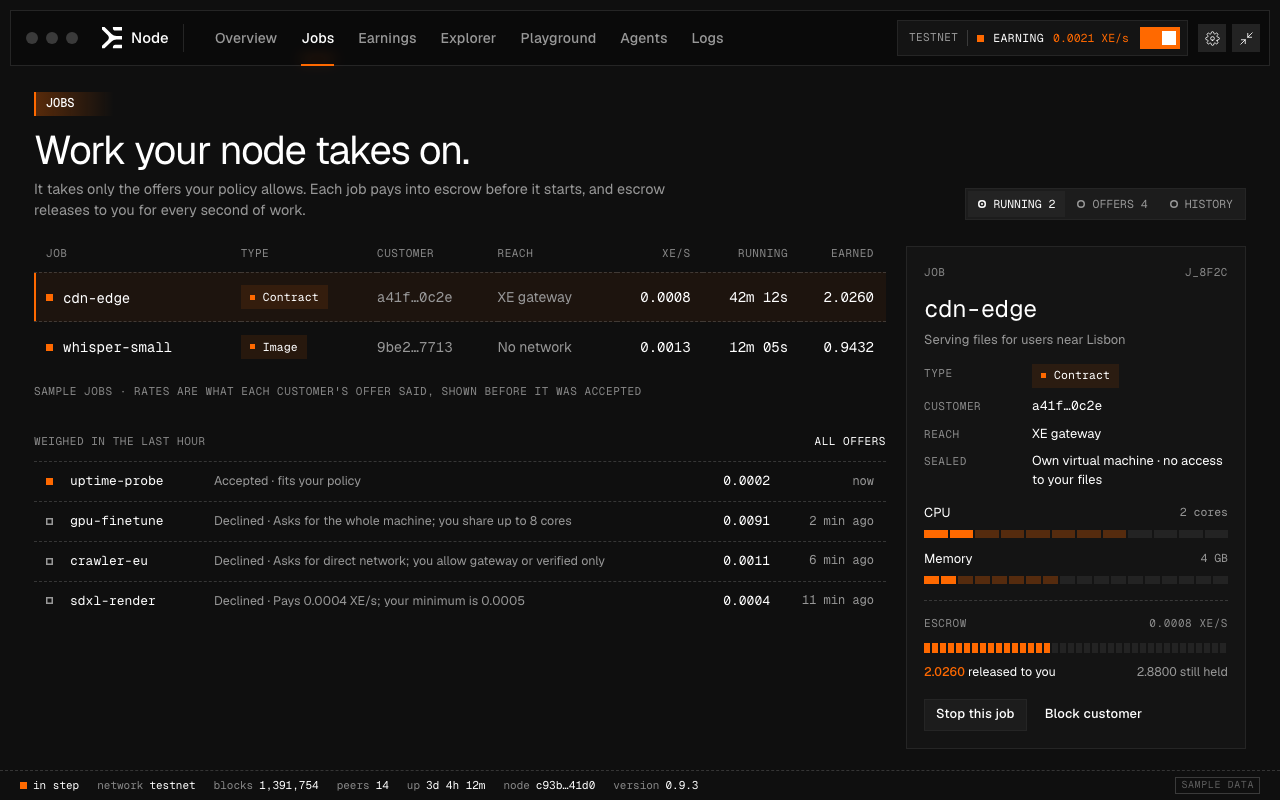
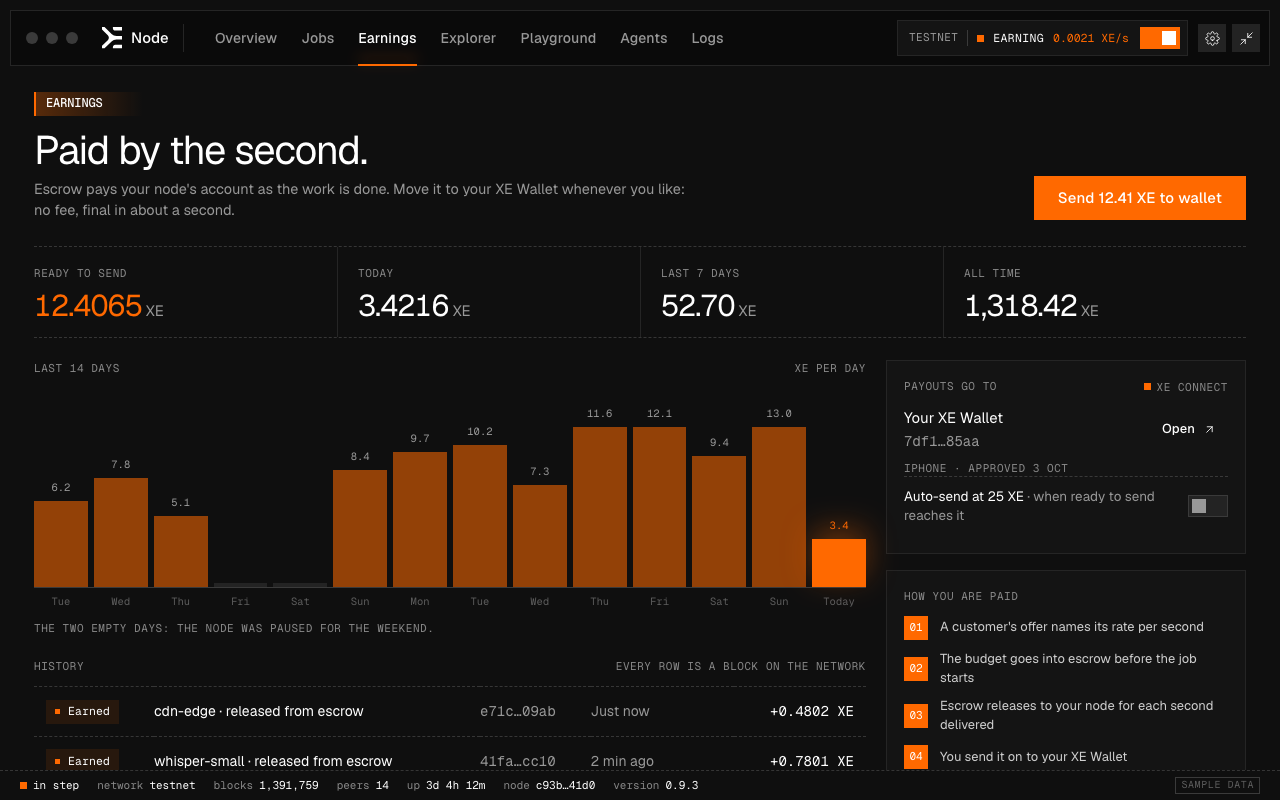
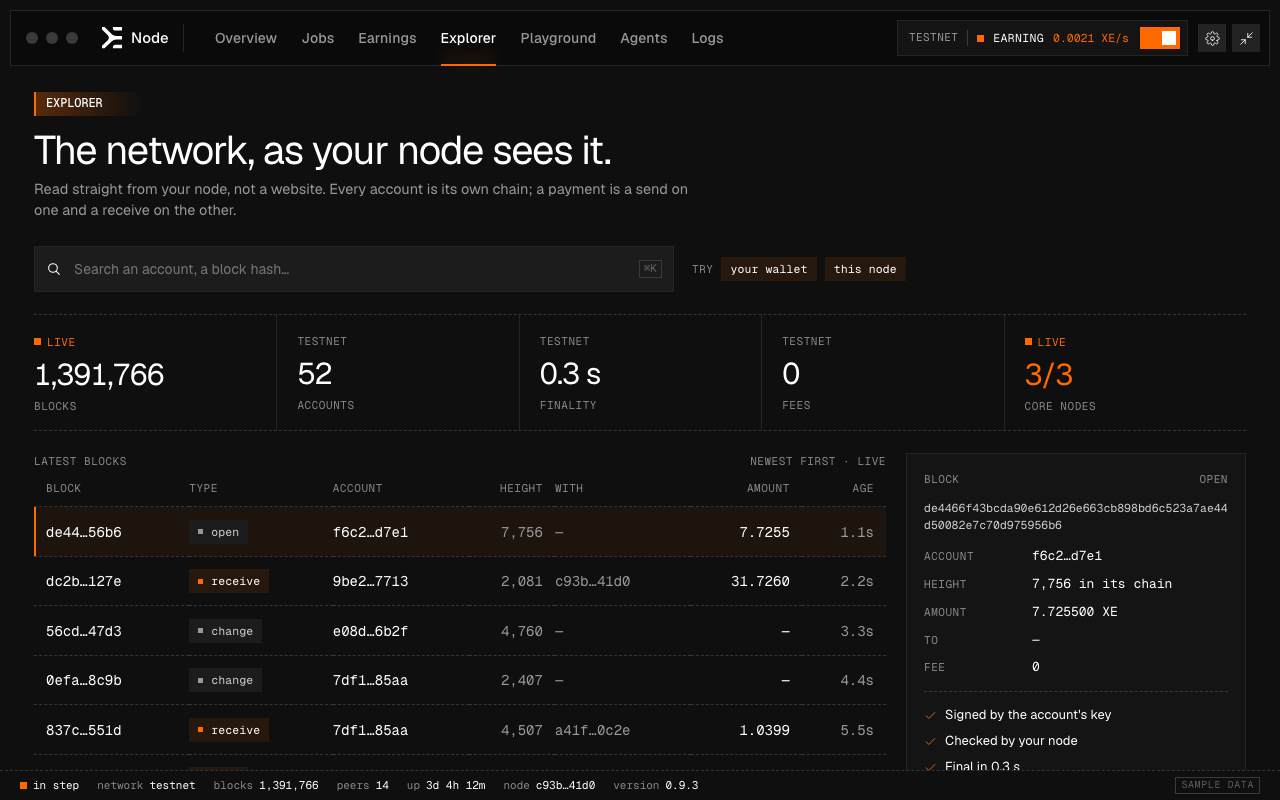
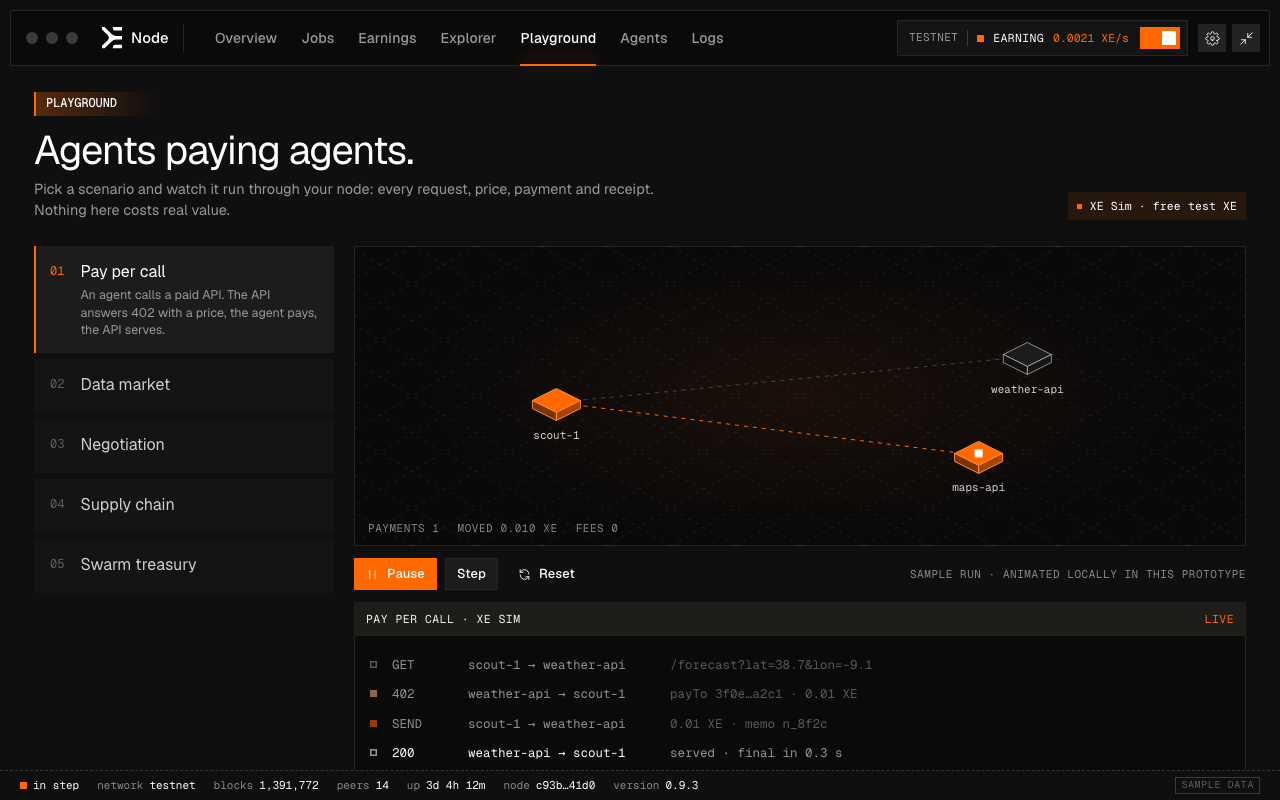
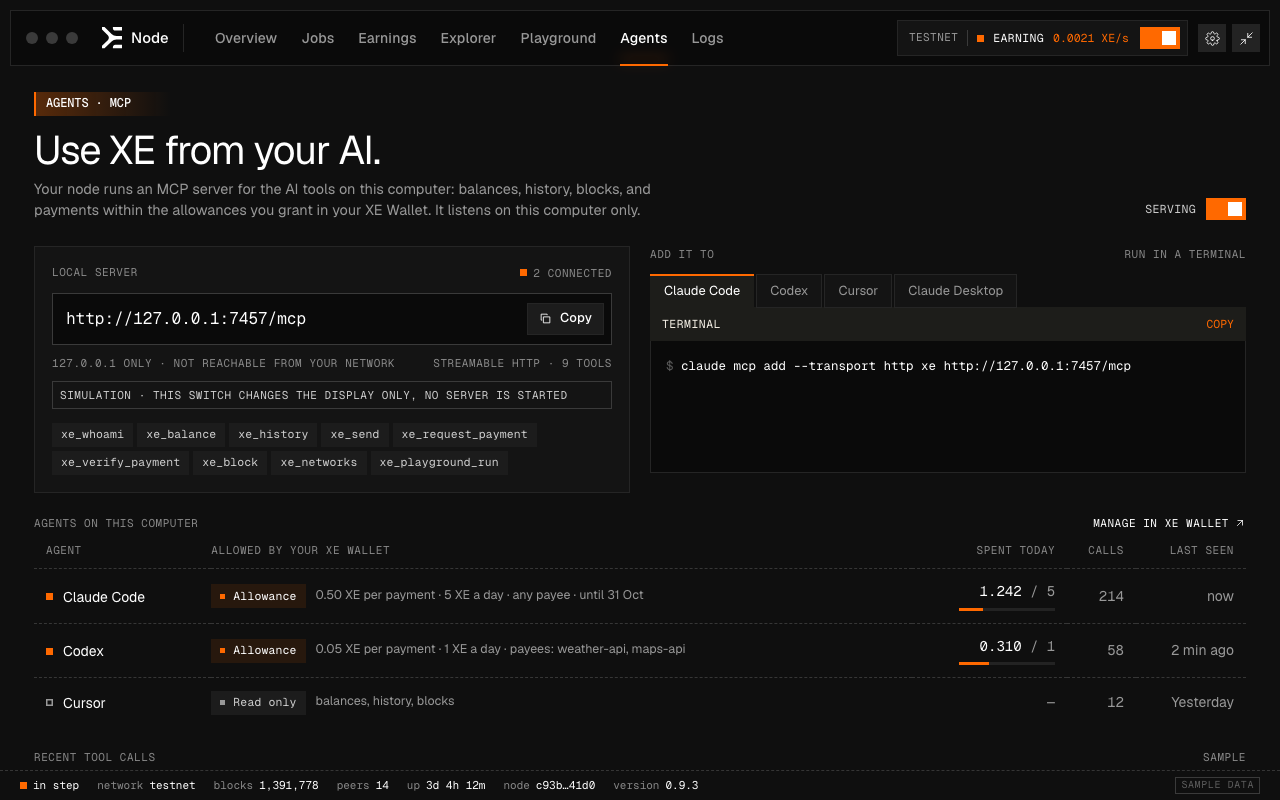
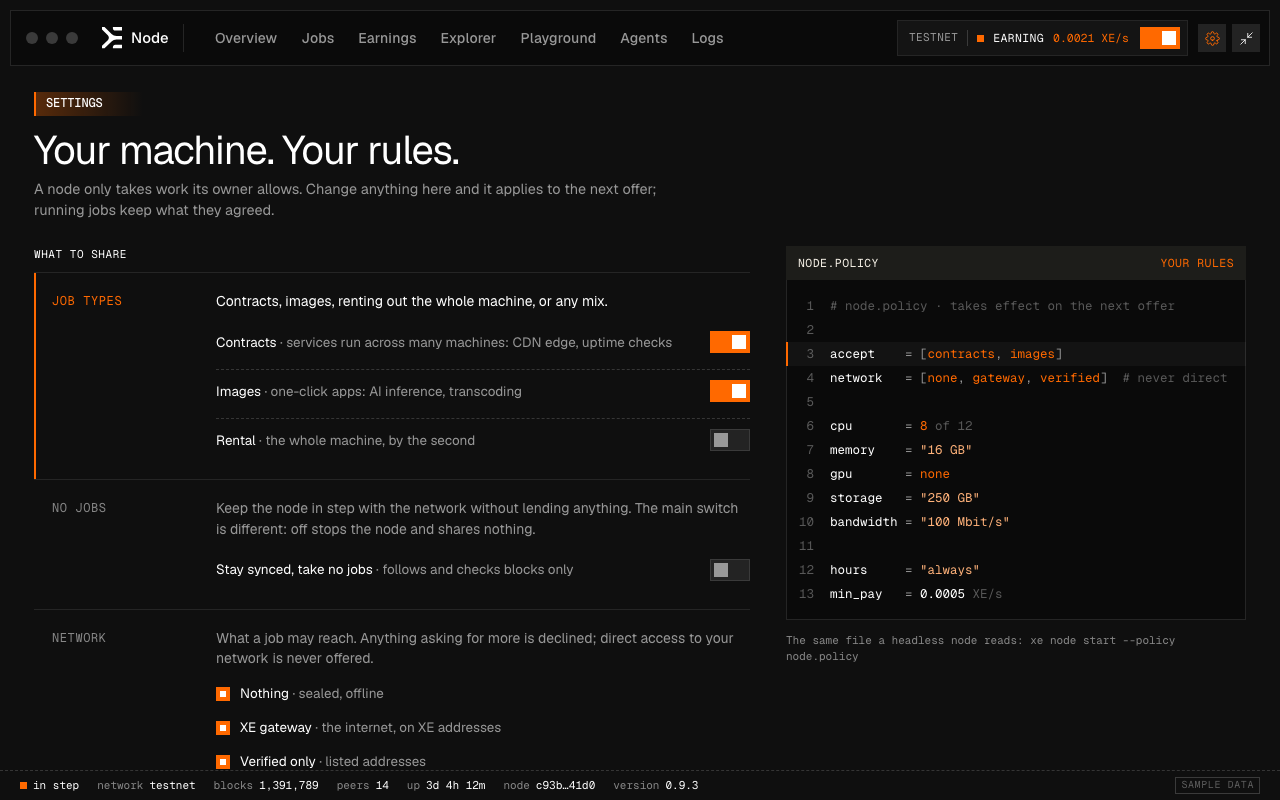
The states, and how to switch between them
A real node changes state by itself. This one cannot, so the menu-bar icon has a menu for it: right-click the XE icon, open "Sample state (design preview)", and pick one. Both views change to it.
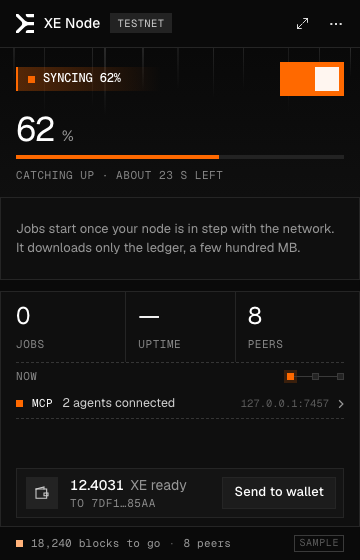
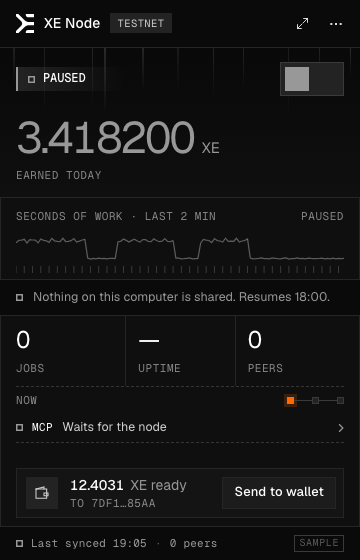
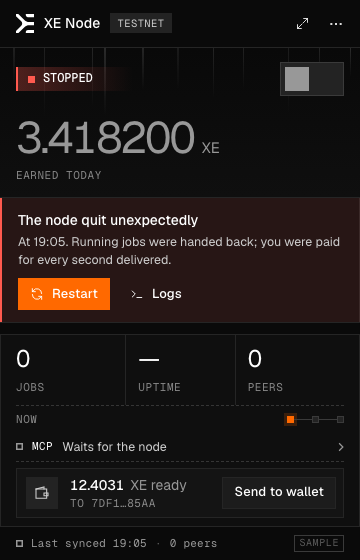
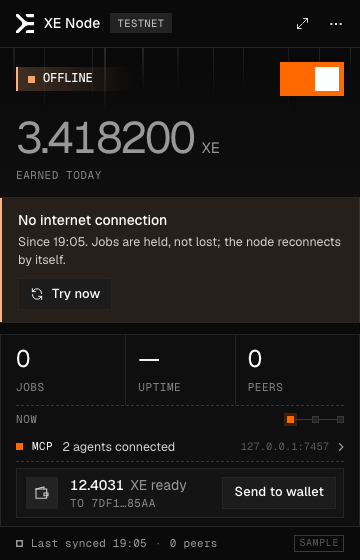
The menu has ten entries: first run, starting, syncing, running and earning, synced with no jobs, paused, three errors (node stopped, disk full, offline), and "update available", which goes on top of any of them. All of them are under Every sample state.
04Not yet
What it does not do yet
Everything that would make it a node.
- It runs no node. There is no node software in the app. The main switch changes the picture.
- It earns nothing. Balances, jobs, rates and payments are sample figures. "Send to wallet" sends nothing.
- It shares nothing. No processor time, memory, disk space or bandwidth leaves your computer. The limits in Settings limit nothing.
- It uses no network. It connects to nothing: not XE Sim, not the testnet, not this site. The Explorer's blocks and the Playground's runs are samples.
- It starts no MCP server. The Agents section shows an address on your computer and commands for AI tools. Nothing listens at that address, so those commands connect to nothing.
- It pairs with no wallet. The code in the first-run step is a drawing. Scanning it does nothing.
- It does not start at login or update itself. Those switches are part of the design.
- It does not run on Windows or Linux. Windows is planned. Until then there is the browser simulation.
The one thing it does outside its own windows: "Open wallet" and "Manage in XE Wallet" open wallet.xe.marketized.io in your browser.
05Reference
Reference
XE Node and the rest of XEThe wallet, the phone apps and the MCP server.
- XE Wallet. A node earns into an account; the wallet is where that account's key is. In the design, the first run connects the node to your wallet, earnings wait in the node until you send them there, and what an AI tool may spend is granted in the wallet, never in this app. In this build the wallet is only a link.
- XE Wallet on your phone. The design's first run shows a code to scan with the phone app, or a link to approve in the browser. The sample screens show an iPhone as the connected wallet. No phone is involved in this build.
- The MCP server. AI tools reach XE through MCP. The hosted server is at the address below. XE Node is designed to offer the same tools from your own computer, at an address only that computer can reach, off until you switch it on. In this build that switch starts nothing.
https://mcp.xe.marketized.io/mcpThat address is for an AI tool's settings. It is not a page to open.
- The signers. The browser extension, the MetaMask Snap and the Ledger app hold keys and sign payments. XE Node holds no key of yours in this build.
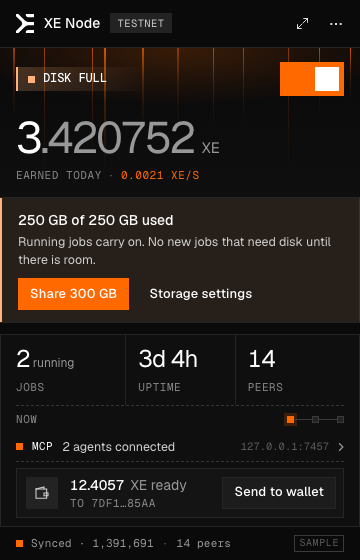
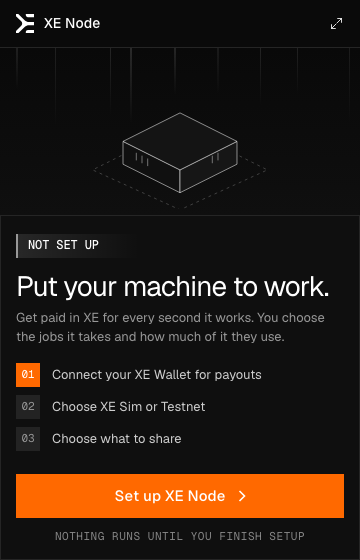
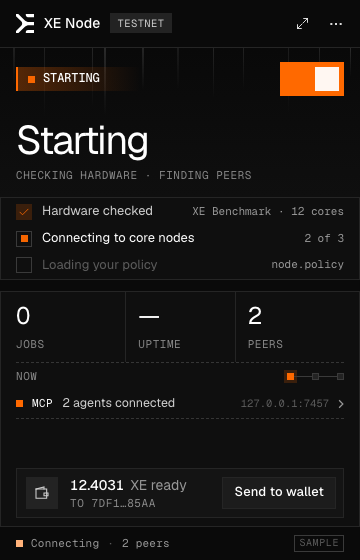
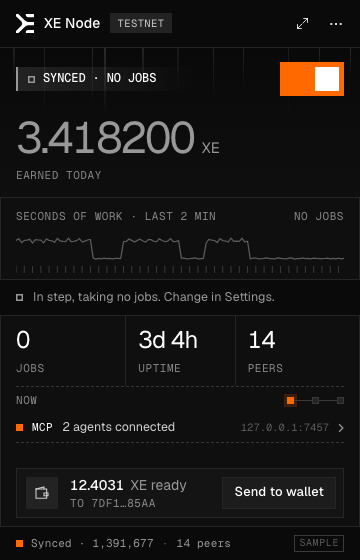
Every sample stateThe nine states and "update available", in the menu-bar view.
From the menu-bar icon's menu, "Sample state (design preview)". Disk full is amber, not red: in the design the node still earns. Red is kept for "stopped".
Between the menu bar and the windowHow the two views turn into each other.
- Open. The menu-bar view drops from the icon.
- Expand. Its frame grows into the window. The small view fades out as the window's content fades in.
- Collapse. The red button, the collapse button or ⌘W: the window shrinks into the menu-bar icon. The app stays in the menu bar.
- Reduce motion. With that setting on in macOS, nothing grows or shrinks. The views cross-fade.
To look at them slowly, quit XE Node and start it from Terminal with this. Everything moves ten times slower.
open -a "XE Node" --args --compact --slow-motionCheck the downloadThe file's SHA-256, who signed it, and what it may do.
Version 0.1.0, built 2026-10-13 from source commit 2d87435.
- macOS 14 or newer, Apple silicon and Intel (5.3 MB)XE-Node-0.1.0-universal.dmg3ba502723fa6b2858dc81c202b3077495d378d0364ef44d45b009ea609092835
shasum -a 256 prints the line above for this file. The same list for scripts: /releases/manifest.json.
Who signed it. With XE Node in Applications, this prints TeamIdentifier=8LQMCMVJPB and Authority=Developer ID Application: Intern Labs, Inc. (8LQMCMVJPB):
codesign -dv --verbose=2 "/Applications/XE Node.app"That Apple notarised it. This prints accepted and source=Notarized Developer ID:
spctl -a -vv "/Applications/XE Node.app"What it may do. This prints nothing: the app asks macOS for no entitlement. It is not sandboxed.
codesign -d --entitlements - "/Applications/XE Node.app"That it listens on nothing. While XE Node is open, this prints nothing:
lsof -nP -iTCP -sTCP:LISTEN -a -p "$(pgrep -x 'XE Node')"What this does and does not prove. A matching checksum means the file is the one this site published; the signature, that Intern Labs, Inc. built it; the notarisation, that Apple's automated scan found no known malware in it. None of them is a review of what the app does. The source is not public yet, so you cannot rebuild it and compare.
Remove itQuit, drag to the Trash, and three leftovers.
Quit it. Right-click the XE icon in the menu bar and choose "Quit XE Node". Closing the window only puts it back in the menu bar. If the icon is hidden, click XE Node in the Dock and press ⌘Q.
Drag XE Node from Applications to the Trash.
Remove what it kept, if you want nothing left: which sample state you last picked and the sample settings, in the web view's storage, and where its window was.
rm -rf ~/Library/WebKit/io.marketized.xe.node ~/Library/Caches/io.marketized.xe.node ~/Library/Preferences/io.marketized.xe.node.plist
It installs nothing else: no login item, no background service, no helper.
Status in fullA design preview: sample data, no audit, source not public yet.
- A simulation. No node, no network, no MCP server, nothing shared. Sample data, labelled "SAMPLE".
- Signed by Intern Labs, Inc. and notarised by Apple. That says who built it, not what it does.
- No security audit. There is little to audit yet: the app shows pictures of a node.
- Source not public yet. It will be published with the first public release.
- Tested by opening this exact disk image on a Mac: both views come up, and the app listens on no port.
- macOS only. Windows later. The browser simulation shows the same interface anywhere.
- The real node will be a later version, and this page will say so plainly when that changes.